Let me paint you a picture. You’re staring at a spreadsheet with 1,000 rows of customer feedback, a deadline breathing down your neck, and the distinct feeling that your brain is slowly turning into mashed potatoes. You know what you need to do — tag each row as positive or negative, pull out the trends, and build a summary your manager can actually read. But the how? That’s where things get painful.
That’s exactly the kind of problem OpenAI just stepped up to solve. In early March 2026, they quietly rolled out an official ChatGPT add-in for Microsoft Excel — and after spending time with it, I want to tell you what’s genuinely useful, what you should watch out for, and whether it’s worth your time.
So What Even Is This Thing?
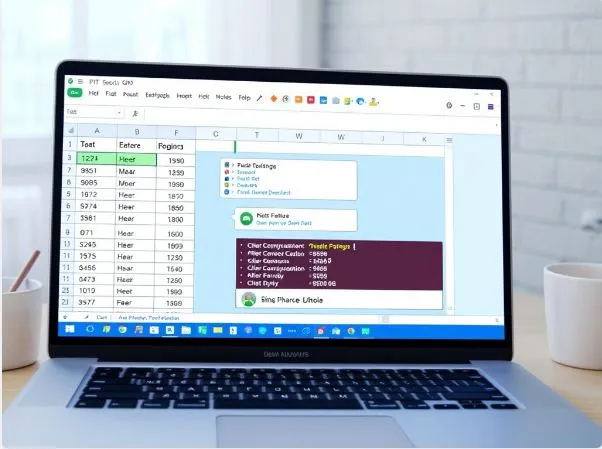
Think of it like having a very patient, spreadsheet-savvy friend sitting beside you in a sidebar. You type what you want in plain English, and ChatGPT handles the heavy lifting — writing formulas, building tables, analyzing data, generating charts — all without you having to memorize another function or hunt through Excel’s menus.
It’s not a chatbot that just gives you tips. It actually touches your spreadsheet. It reads your data, makes changes, and explains exactly what it did and why.
Getting It Set Up (It’s Not Complicated)
Here’s how you get started: open Excel, go to the Insert tab, and look for Get Add-ins or Office Add-ins depending on your version. Search for “ChatGPT,” pick the official one from OpenAI, install it, and log in with your account. That’s it.
One thing to know upfront: you need a ChatGPT Plus, Pro, Enterprise, Business, Edu, or Teachers subscription. Free users are out for now. It’s also currently limited to folks in the U.S., Canada, and Australia while it’s in beta.
The Part That Actually Impressed Me
Once you’re in, the sidebar becomes your command center. You type something like, “Create a sales summary table using columns A through D” — and it builds it. You ask it to “find outliers in Q1 revenue across all sheets” — and it scans everything, flags the weird numbers, and tells you which cells to look at.
What I kept appreciating was the transparency. Every change links back to specific cells. Before it makes a big edit, it asks for your approval. It doesn’t just quietly rearrange your spreadsheet and leave you guessing — it walks you through what it did, almost like a colleague narrating their thought process.
The formula help alone is a time-saver. Ask it to write a SUMIF, a VLOOKUP, or a nested IF statement, and it doesn’t just spit out the formula — it explains it in plain language so you actually understand what you’re looking at. That’s rare.
For bulk work, this is where it really shines. Categorizing hundreds of rows? Translating content? Building a budget model with projections from scratch? Tasks that used to take hours get knocked out in minutes.
Where You’ll Hit the Ceiling
Now, I want to be straight with you, because this is still a beta, and betas come with rough edges.
Complex formatting — the kind where you’ve got merged cells, custom styles, and conditional formatting doing six different things — can trip it up. You’ll sometimes need to go in and clean things up manually afterward. Always review what it produces before you share it with anyone important.
It also doesn’t connect to your ChatGPT chat history, and there’s no memory feature yet. Every session starts fresh. If you’ve built up context in a conversation about a project, you won’t be able to pull that into your spreadsheet session automatically. That’s a limitation worth knowing going in.
And the privacy piece: your workbook content may be shared with OpenAI and Microsoft as part of how the tool functions. If you’re working with sensitive data, read the privacy policies carefully before you start feeding your spreadsheet into the sidebar.
How to Use It Well
The biggest mistake people will make with this tool is treating it like a magic button. It’s more like a smart collaborator — the clearer your instructions, the better the output. Instead of asking “make this better,” try “summarize the revenue trends from Sheet 2 and flag any month where growth dropped below 5%.” Specificity is your friend.
Start with smaller tasks to get a feel for how it responds. Let it build a simple table, watch how it explains itself, and gradually move to more complex asks. The confirmation prompts it sends before major edits are there for a reason — use them, and don’t skip reading what it’s about to do.
This isn’t a gimmick. For anyone who spends serious time in Excel — analysts, operations folks, finance teams, small business owners managing their own books — this add-in removes a real layer of friction. It won’t replace your judgment or your understanding of your data, but it handles the mechanical parts faster and more clearly than anything else I’ve used.
If you are already a ChatGPT subscriber and you work in Excel regularly, it’s worth trying. Just go in with realistic expectations: it’s a beta, review your outputs, and give it clear instructions. Do that, and you’ll probably wonder how you worked without it.