If you’ve ever found yourself drowning in a sea of browser tabs, frantically clicking back and forth between two pages just to compare a piece of information — or downloading a PDF only to open another app just to highlight a single line — then Google Chrome’s newest updates were built with you in mind. Chrome has quietly rolled out two standout features: Split View and Native PDF Annotation with Google Drive integration. Together, they address some of the most common productivity pain points people face when working online every day.
Split View: Side-by-Side Browsing Without the Chaos
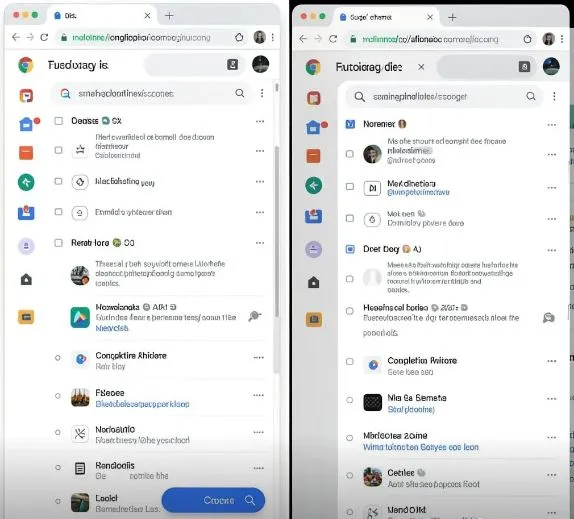
The concept is simple: instead of toggling between two tabs, Split View lets you place two web pages side by side within a single browser window. No second monitor required. No juggling multiple windows.
How to activate it is straightforward. Right-click any link and select “Open Link in Split View,” or drag an existing tab to the edge of your browser window. Chrome automatically arranges both pages in a dual-pane layout. Done.
Once you’re in Split View, each pane behaves like its own independent browser. You can scroll, click, and navigate on one side without disturbing what’s open on the other. The divider between the two panes isn’t locked in place either — drag it left or right to give more screen space to whichever side needs it at that moment.
Exiting Split View is equally painless. Close one tab and the other expands to fill the full window. Or drag a tab out to return to standard single-tab browsing.
Who benefits most? This feature is a game-changer for students doing research, professionals referencing documents while writing reports, or anyone who regularly compares two sources of information. It significantly cuts down on what you might call “tab fatigue” — that low-grade mental drain from constantly switching contexts. By keeping both pages visible simultaneously, your brain stays focused on the task rather than wasting energy on navigation.
Native PDF Annotation: No More Downloading Just to Highlight
Previously, if you wanted to annotate a PDF you found online, you had to download it, open it in a separate app, mark it up, save it, and then deal with the clutter of another file sitting in your downloads folder. Chrome now eliminates almost all of those steps.
When you open a PDF in Chrome, a new annotation toolbar appears at the top of the viewer. It includes a pen for freehand drawing, a highlighter for marking text, and an eraser to clean up any mistakes. You can adjust color and thickness settings to suit your preferences. Once you’re done annotating, save directly from the browser — your markups are preserved in the file.
This is particularly useful for anyone reviewing contracts, research papers, study materials, or any document that benefits from quick notes and highlights. Teachers, remote workers, and students will find this especially practical.
Save to Google Drive: Cut the Clutter
Alongside the standard download button when viewing a PDF, Chrome now displays a “Save to Google Drive” button. One click sends the file — annotations and all — straight to your connected Google account. Chrome automatically places it in a folder called “Saved from Chrome,” so you always know where to look.
This removes the two-step process of downloading locally and then uploading to the cloud. Your files stay organized, accessible from any device, and backed up without extra effort.
These features don’t reinvent the browser, but they solve real, everyday frustrations in a clean and intuitive way. Split View reduces distraction and keeps you in flow. PDF annotation removes unnecessary steps from document work. And direct Drive saving keeps your digital space tidy. If you prioritize focused, efficient work, these tools are worth exploring immediately — they’re already built into Chrome, so there’s nothing extra to install.